
O2 Cookie Consent Pro: the International Cookie Consent Plugin for WordPress
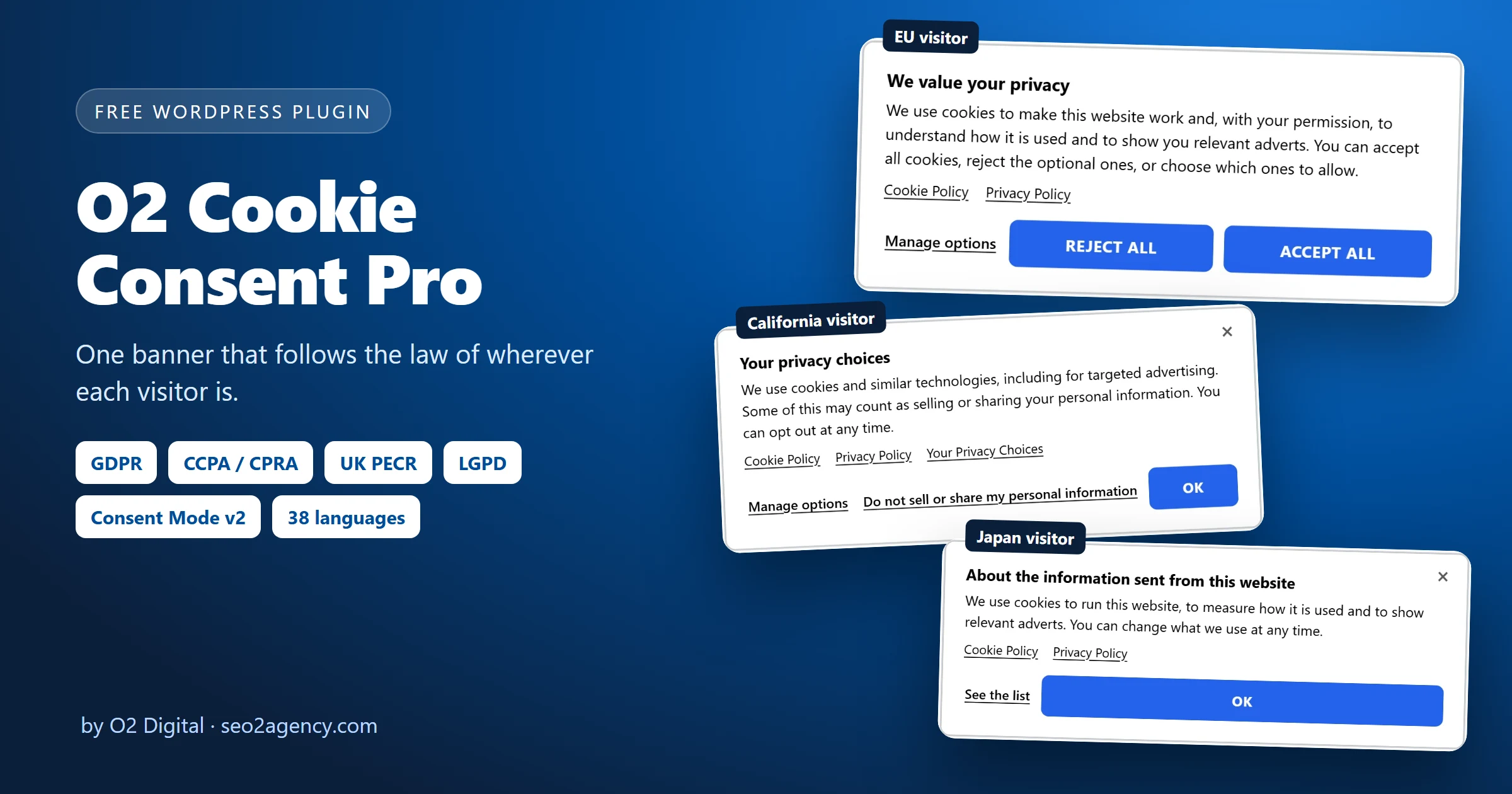
O2 Cookie Consent Pro is a free, complete cookie consent plugin for WordPress that works out where each visitor is and shows them the banner their own law requires – GDPR opt-in in the EU, UK PECR, CCPA/CPRA opt-out in California, LGPD in Brazil and 32 legal profiles in all – with Google Consent Mode v2, an automatic cookie scanner, policy pages that write themselves and 38 languages.
- GDPR & ePrivacy
- UK PECR + DUAA 2025
- CCPA / CPRA + US states
- LGPD
- Switzerland nFADP
- Japan APPI / TBA
- Google Consent Mode v2
- Global Privacy Control
- IAB GPP
- EU AI Act art. 50
- 38 languages
Why your website needs a cookie consent plugin that thinks internationally
A website is international the moment it is online. A visitor from Paris, one from Los Angeles and one from Tokyo can all land on the same page in the same minute, and each of them is protected by a different law. The EU and the UK want consent before anything optional runs. California wants a clear way to opt out of the sale or sharing of personal information and respect for the Global Privacy Control signal. Japan wants you to disclose what is transmitted to third parties. Brazil, Switzerland, Canada, Turkey, South Korea and many others each have their own version.
Most cookie plugins pick one of these rules and show the same banner to everybody. That means either asking people who never had to be asked – and losing analytics and advertising data you were entitled to – or not asking people who had to be asked, which is where the fines are. Regulators also check how you ask: a “Reject all” hidden behind a second screen, pre-ticked boxes or a banner that loads Google Analytics before anyone clicks are all findings in real enforcement decisions.
O2 Cookie Consent Pro solves this the way the law is actually written: per visitor. It is built for site owners, agencies and developers who want one plugin that is correct everywhere, does not need a monthly subscription, and keeps working when the website is behind a page cache.
- Lawful in every country you get traffic from – not only the one you are based in.
- More consented data where the law allows it – US and Japanese visitors are not forced through an EU-style opt-in.
- Google Ads and GA4 keep working – Consent Mode v2 signals are sent correctly, so conversion modelling stays on.
- Proof when you need it – a tamper-evident consent log and receipts visitors can download.
- Less manual work – the scanner describes your cookies and the plugin writes and updates the cookie policy for you.
How to install O2 Cookie Consent Pro
Installation takes about two minutes and needs no code. The plugin is a standard WordPress .zip package.
Step by step
- Download the plugin with any download button on this page. You get
o2-cookie-consent-pro-5.0.7.zip– do not unzip it. - In your WordPress dashboard go to Plugins → Add New Plugin → Upload Plugin.
- Click Choose File, select the zip and click Install Now.
- Click Activate Plugin. A new Cookie Consent item appears in the admin menu, with a shield icon.
- Open Cookie Consent → Dashboard. The checklist tells you what is already done and what is left.
- Go to Cookies & scan and click Scan the website, then Save. The floating Save button reminds you if you forget.
- Open Pages & blocks and publish the Cookie Policy page the plugin writes for you.
- If you use a page cache (LiteSpeed, WP Rocket, W3 Total Cache and others), the plugin empties it automatically when you save. Check the result with Tools → What does a visitor actually receive?
Requirements: WordPress 6.5 or newer, PHP 8.1 or newer. Updating from an older O2 cookie plugin? Your existing settings and cookie register are kept.
Features: every module, what it does and how to set it up
O2 Cookie Consent Pro is organised in tabs, one per job. Below, each module is explained in the same way: what it is, how it helps you, and how to set it up step by step, with real screenshots from the plugin.
01Jurisdictions: a banner that follows each visitor’s own law
What it is
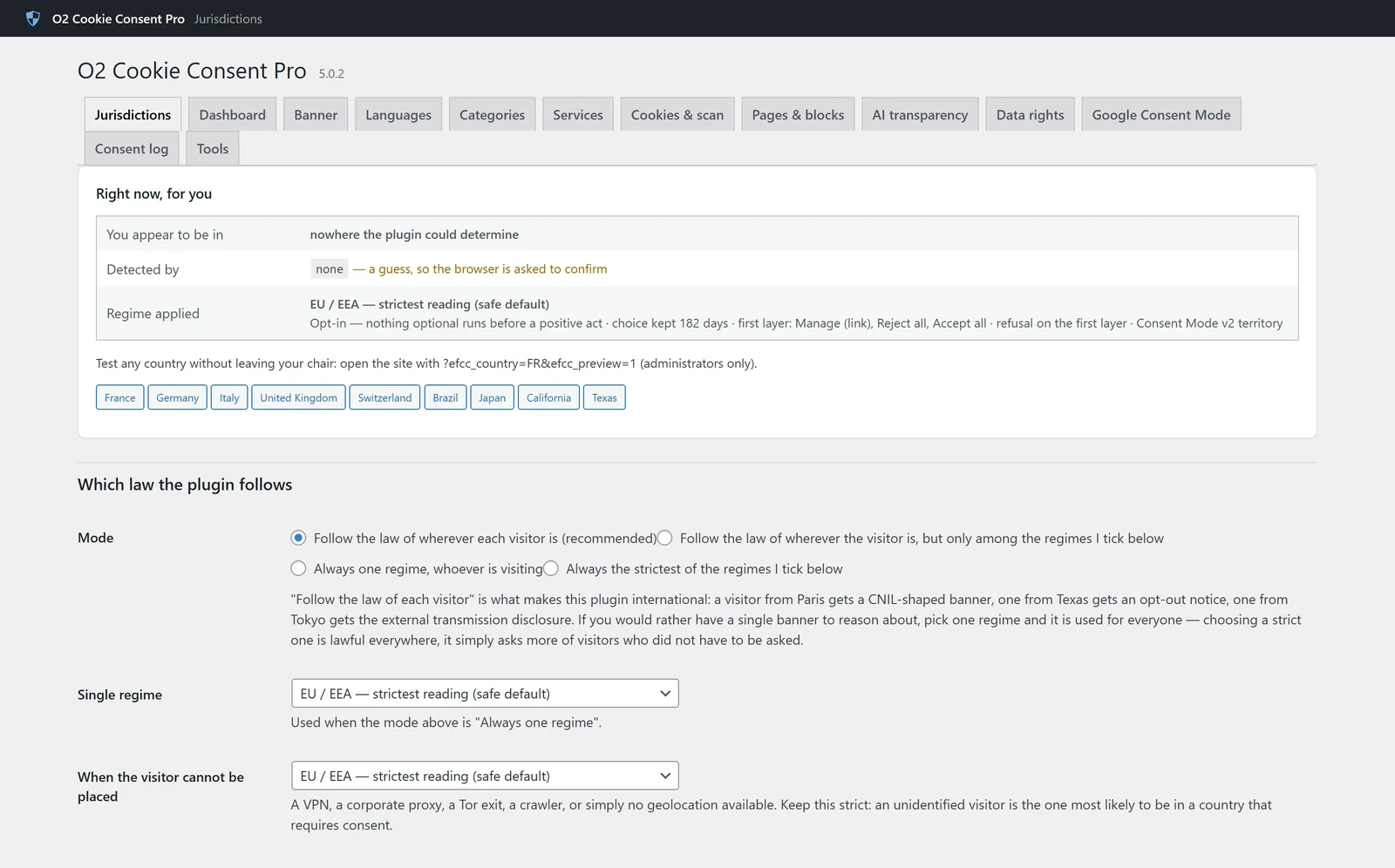
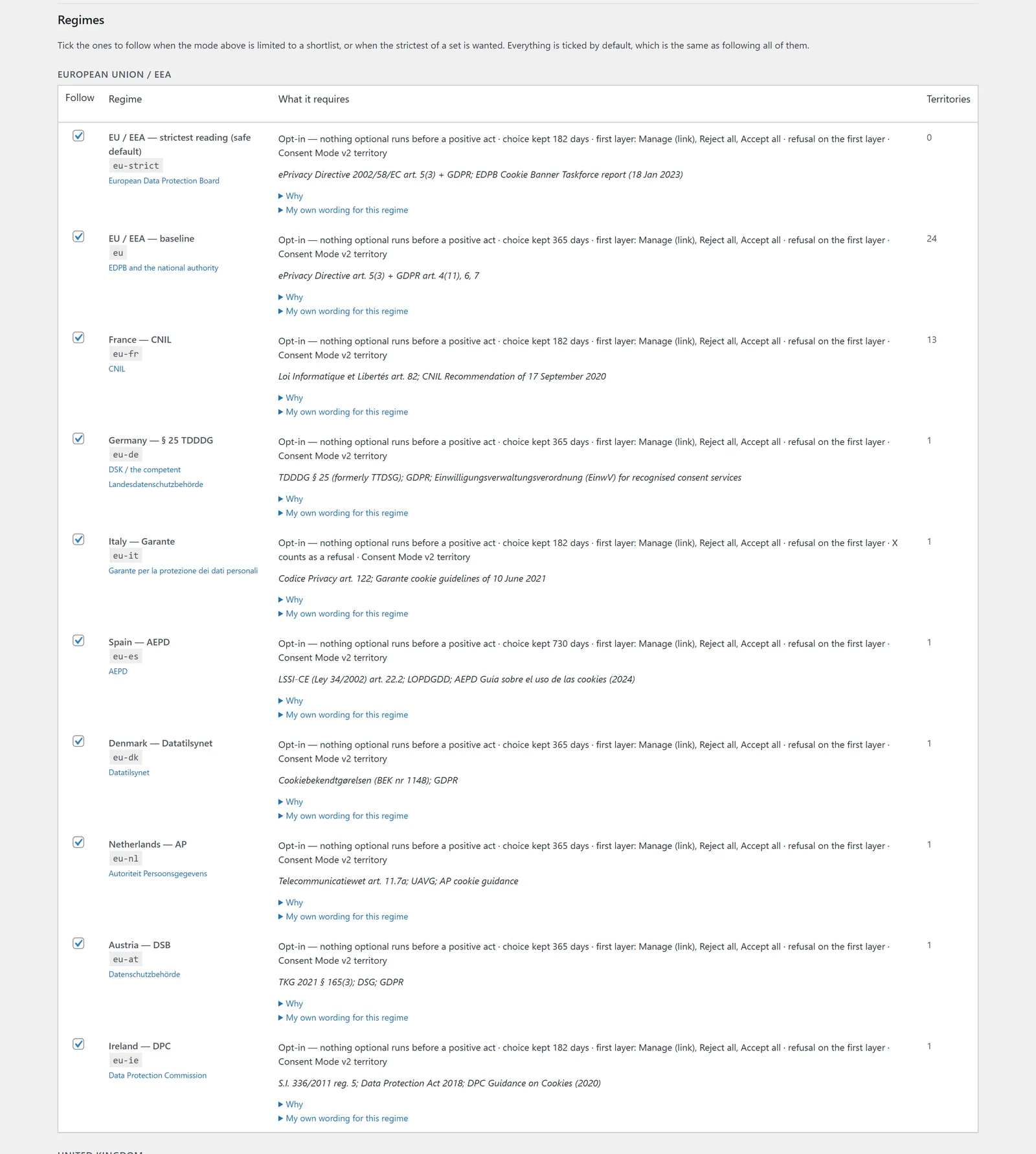
The heart of the plugin. It contains 32 legal profiles covering 250 countries and territories, the US states and the Canadian provinces: the EU baseline plus national readings (France CNIL, Germany TDDDG, Italy Garante, Spain AEPD, Denmark, the Netherlands, Austria, Ireland), the UK after the Data (Use and Access) Act 2025, Switzerland, California and the other US privacy states, Brazil, Canada, Japan, South Korea, Australia, Turkey and more. Each profile knows whether consent is opt-in or opt-out, how long a choice stays valid, which buttons must appear on the first layer and whether Global Privacy Control must be honoured.
How it helps
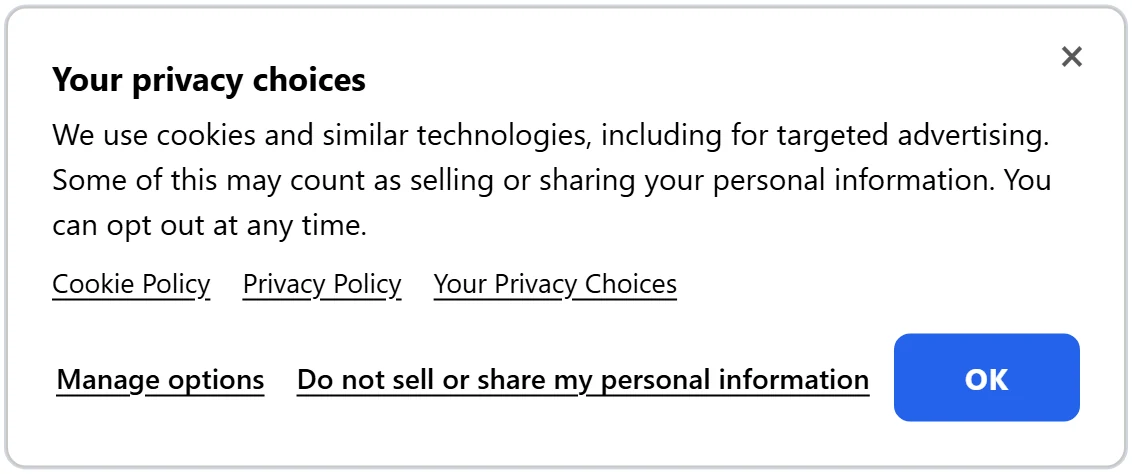
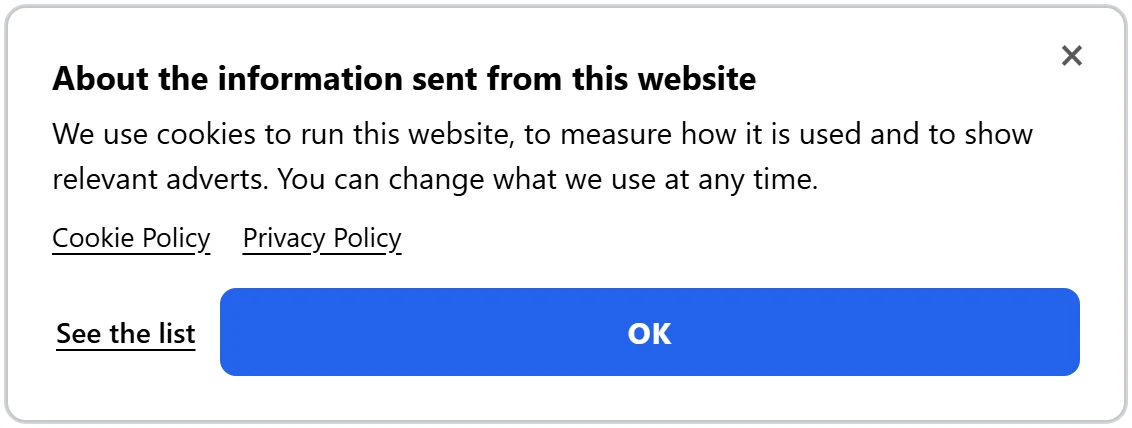
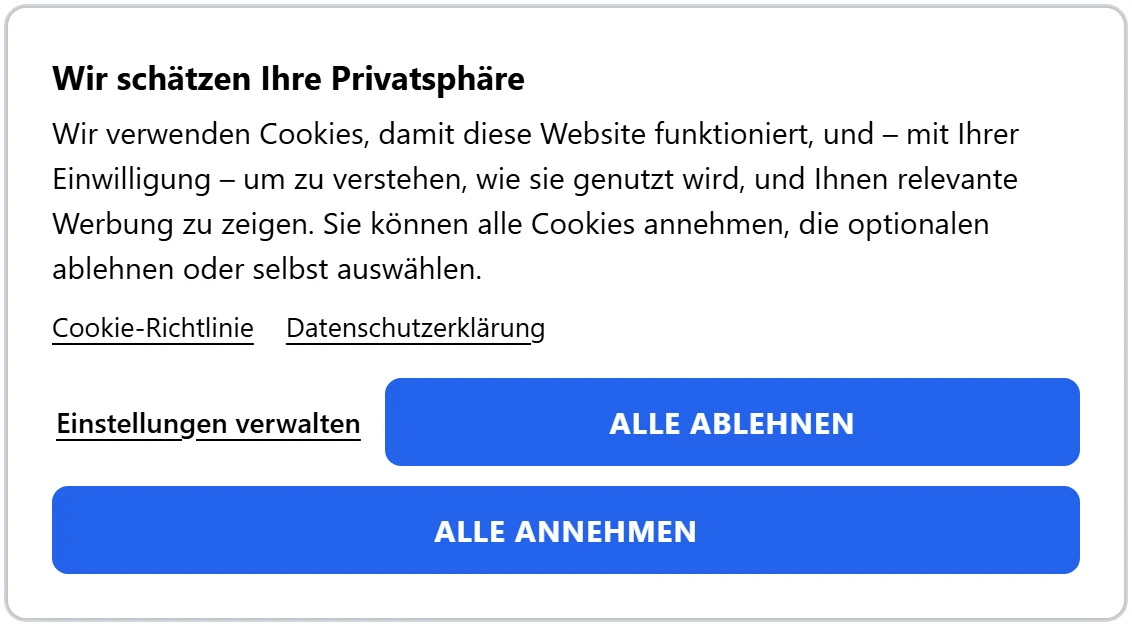
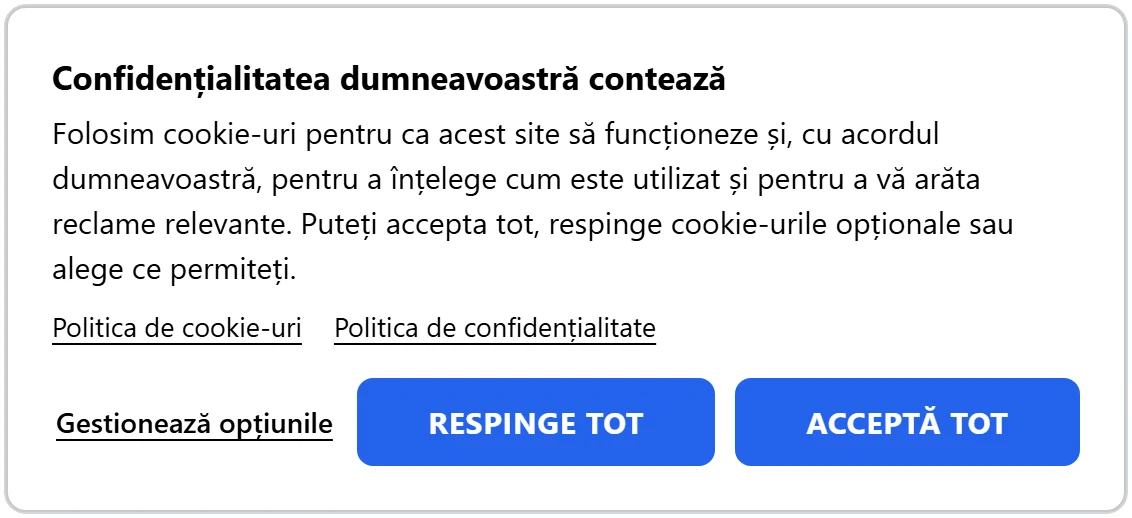
A visitor in Paris gets a CNIL-shaped opt-in banner, one in Texas gets an opt-out notice and one in Tokyo gets the external transmission disclosure. You stop over-asking in countries that do not require consent, and you never under-ask where it is required. A visitor who cannot be located – a VPN, a corporate proxy – gets the strictest profile, which is lawful everywhere.
Location is worked out without sending anyone’s IP address to a third party: from your CDN’s country header (Cloudflare and others), your server’s GeoIP module, or a MaxMind-format database you add yourself, and as a last resort from the browser’s time zone and language. It is also cache-safe: every visitor receives the same cached HTML and one small uncached request settles the law, so LiteSpeed, WP Rocket and similar caches keep working.
How to set it up
- Go to Cookie Consent → Jurisdictions.
- Under Mode keep Follow the law of wherever each visitor is (recommended). Alternatively choose one regime for everyone, a shortlist, or “the strictest of the regimes I tick”.
- Set When the visitor cannot be placed. Leave it on EU / EEA – strictest reading unless you have a reason not to.
- Optionally untick regimes you do not want to follow, or open My own wording for this regime to customise the text for one jurisdiction.
- Use the test buttons (France, Germany, UK, Brazil, Japan, California, Texas…) to preview the site as a visitor from that place. Only administrators can do this.
- Click Save Changes.
Here is the same website seen from five places. Notice how the buttons change, not just the words:
02A smart consent banner in your brand colours
What it is
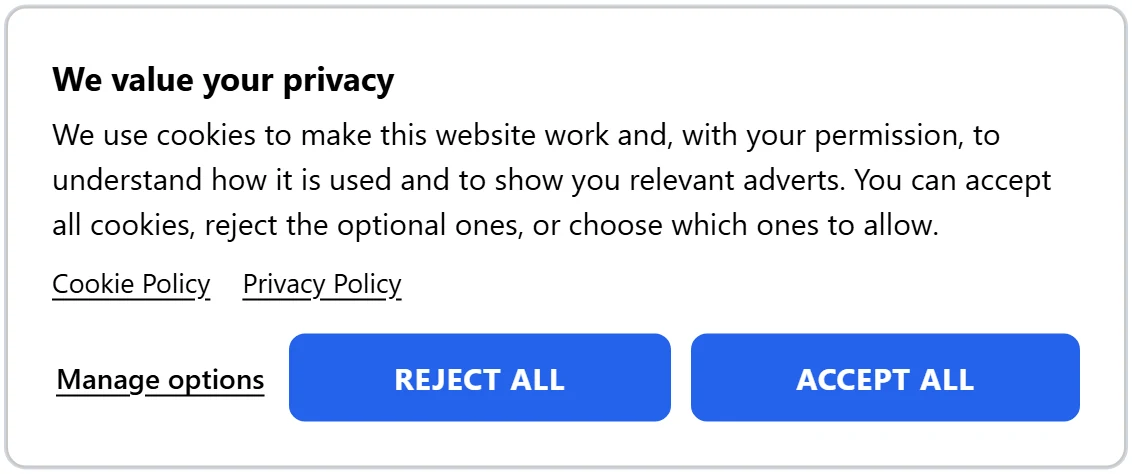
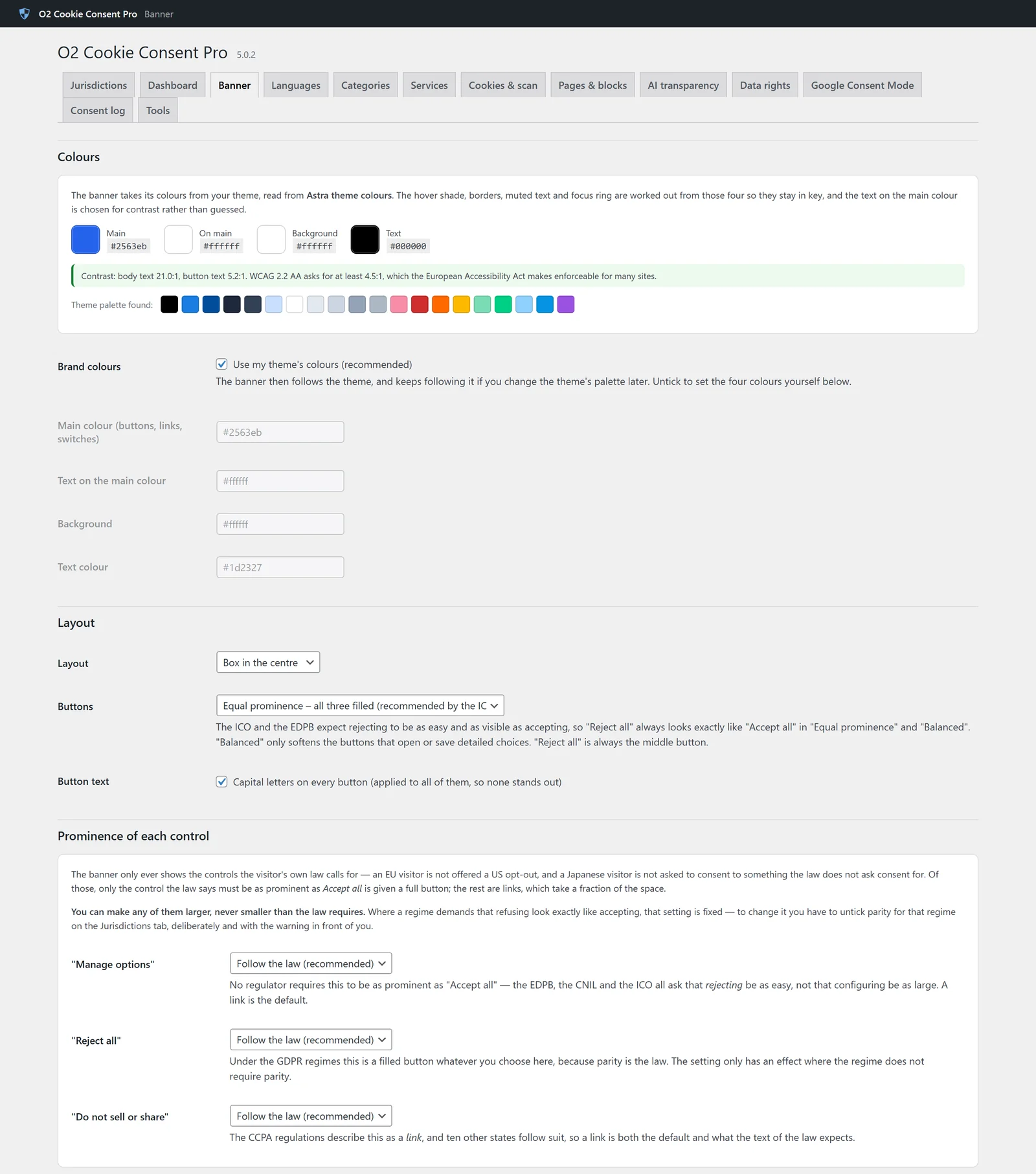
The banner visitors see. It carries only the controls the visitor’s law requires – an EU visitor is never shown a US opt-out link and a Japanese visitor is not asked to consent to something their law does not ask consent for. Only the control the law insists on gets the weight of “Accept all”; everything else is a discreet link, so the banner takes less space. The colours are read automatically from your theme (Astra, block themes and others) and the contrast is checked against WCAG 2.2 AA.
How it helps
Equal prominence of “Reject all” and “Accept all” is exactly what the EDPB, the CNIL and the ICO check for, and the plugin will not let you make a legally required button smaller by accident. At the same time, the banner looks like part of your website instead of a generic pop-up, which builds trust and improves acceptance. Links to your Cookie Policy, Privacy Policy and, where relevant, Your Privacy Choices are added automatically.
How to set it up
- Go to Cookie Consent → Banner.
- Under Brand colours keep Use my theme’s colours, or untick it and choose the main, text and background colours yourself.
- Choose a Layout: box in the centre, bar at the bottom, or a box in the bottom-left or bottom-right corner.
- Under Prominence of each control keep Follow the law (recommended). You can make any control more prominent, never less than the law requires.
- Edit the Texts – title, message and button labels – if you want your own wording.
- Click Save Changes and preview the result with Preview the banner on the site.
03Cookie preferences and categories
What it is
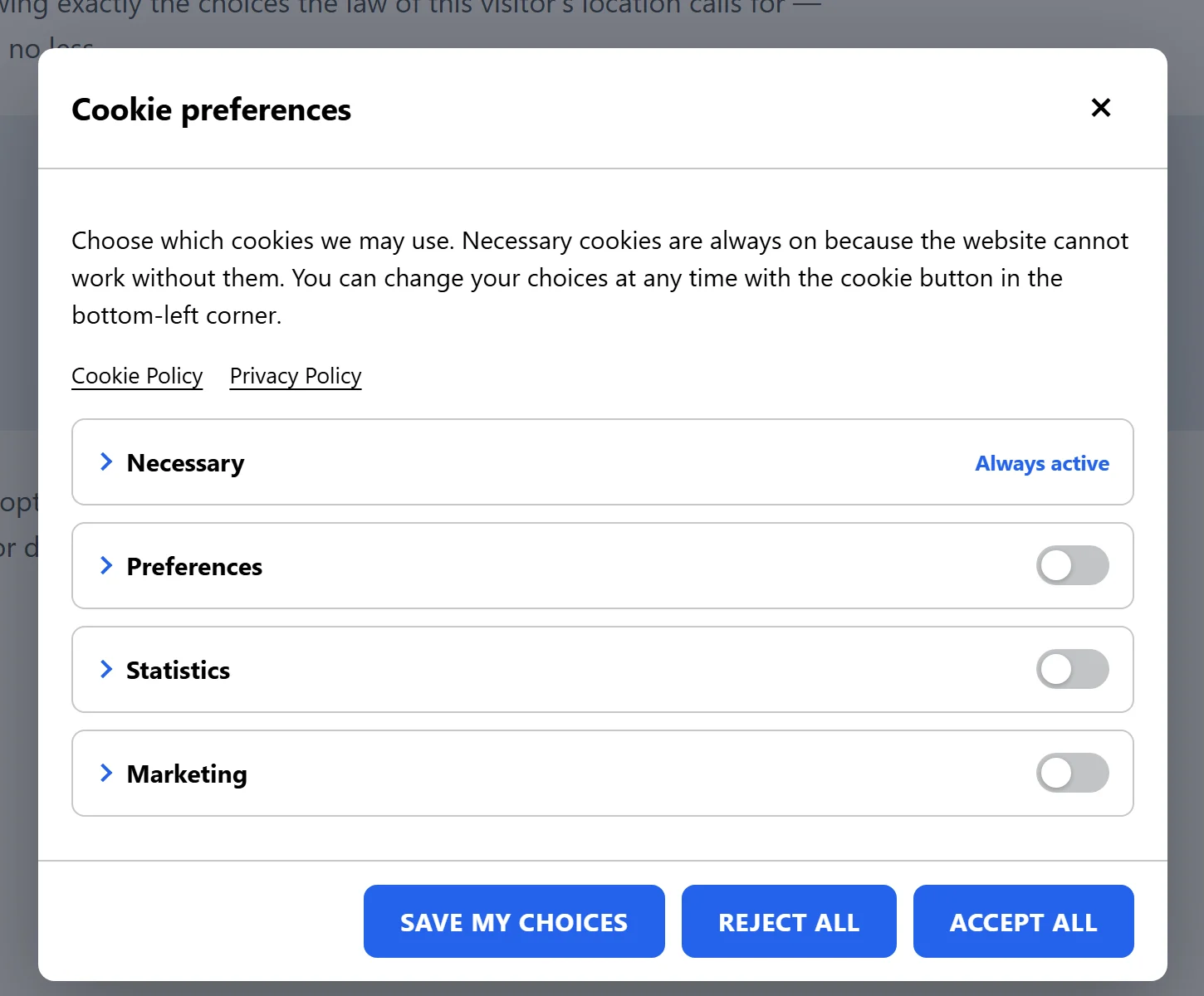
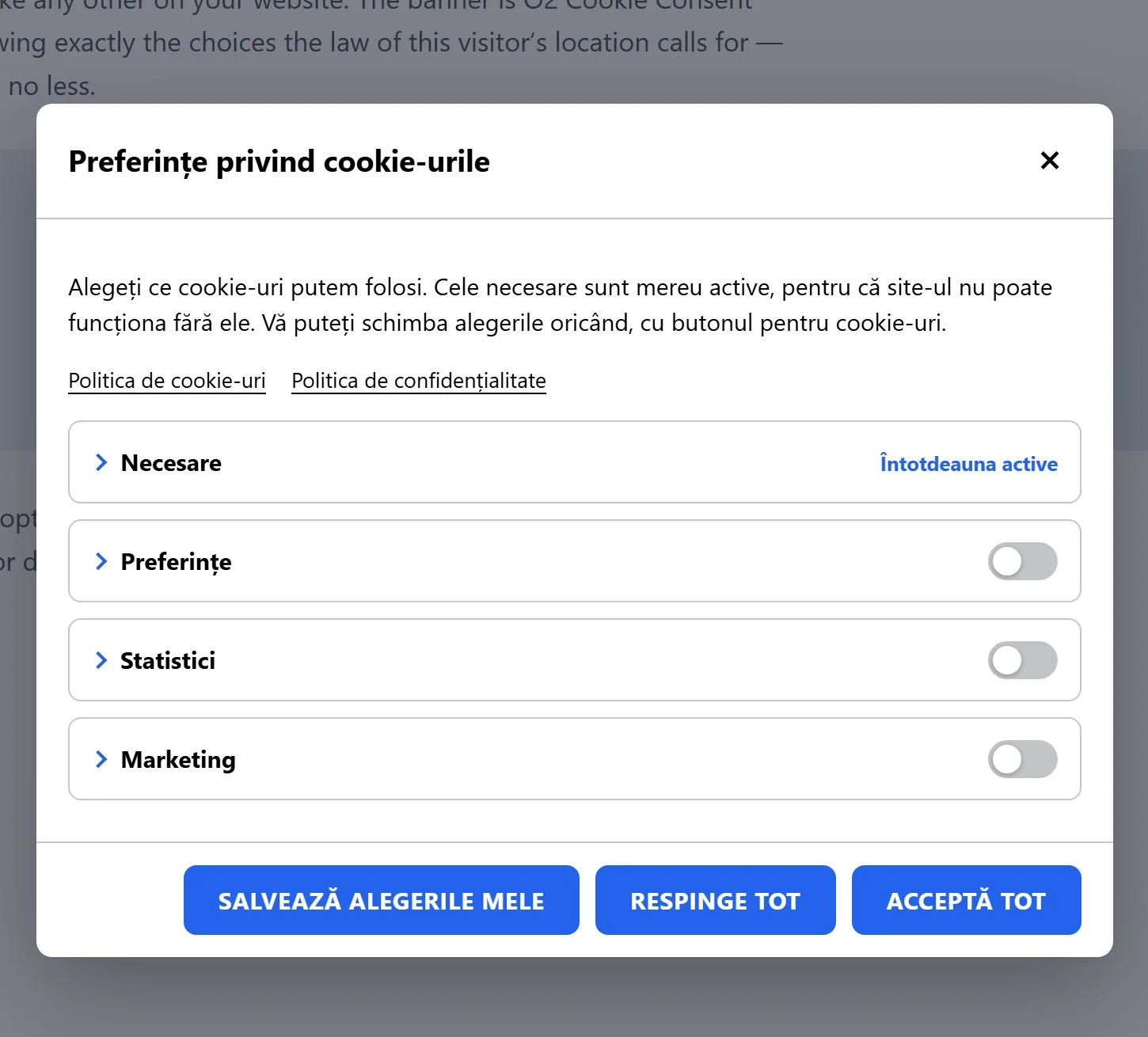
The second layer: a dialog where visitors switch each category on or off – Necessary (always active), Preferences, Statistics and Marketing – and see the cookies and services in each. A floating cookie button lets them reopen it at any time, and the [efcc_settings_button] shortcode puts the same button anywhere you like.
How it helps
Granular consent is a GDPR requirement and withdrawing consent must be as easy as giving it. Nothing optional is pre-ticked, and every choice is sent immediately to Google Consent Mode and to the scripts the plugin controls.
How to set it up
- Go to Cookie Consent → Categories to rename categories or edit their descriptions.
- Go to Banner → Texts to change the dialog title, introduction and button labels.
- Choose the style of the floating Cookie button on the Banner tab, or hide it and use the shortcode in your footer instead.
- Click Save Changes.
04Automatic cookie scanner
What it is
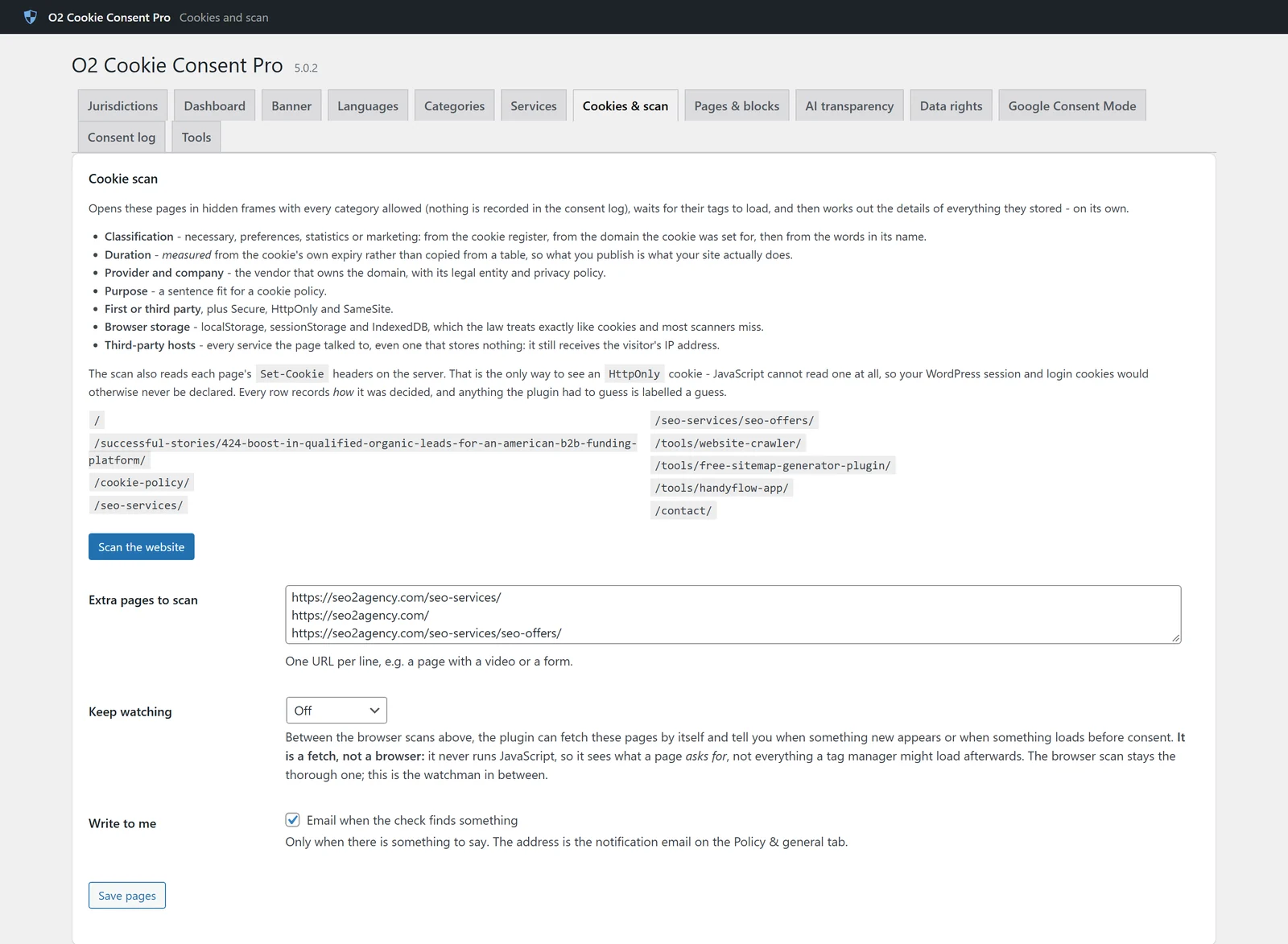
A scanner that opens your pages the way a browser does, waits for tags to load and records everything that was stored – cookies, localStorage, sessionStorage and IndexedDB. It also reads the Set-Cookie headers on the server, so it sees HttpOnly cookies that no JavaScript scanner can. For each item it works out the category, provider and company, purpose, first or third party, Secure/HttpOnly/SameSite and a duration measured from the cookie itself, not copied from a list. It also lists every third-party host your pages contact.
How it helps
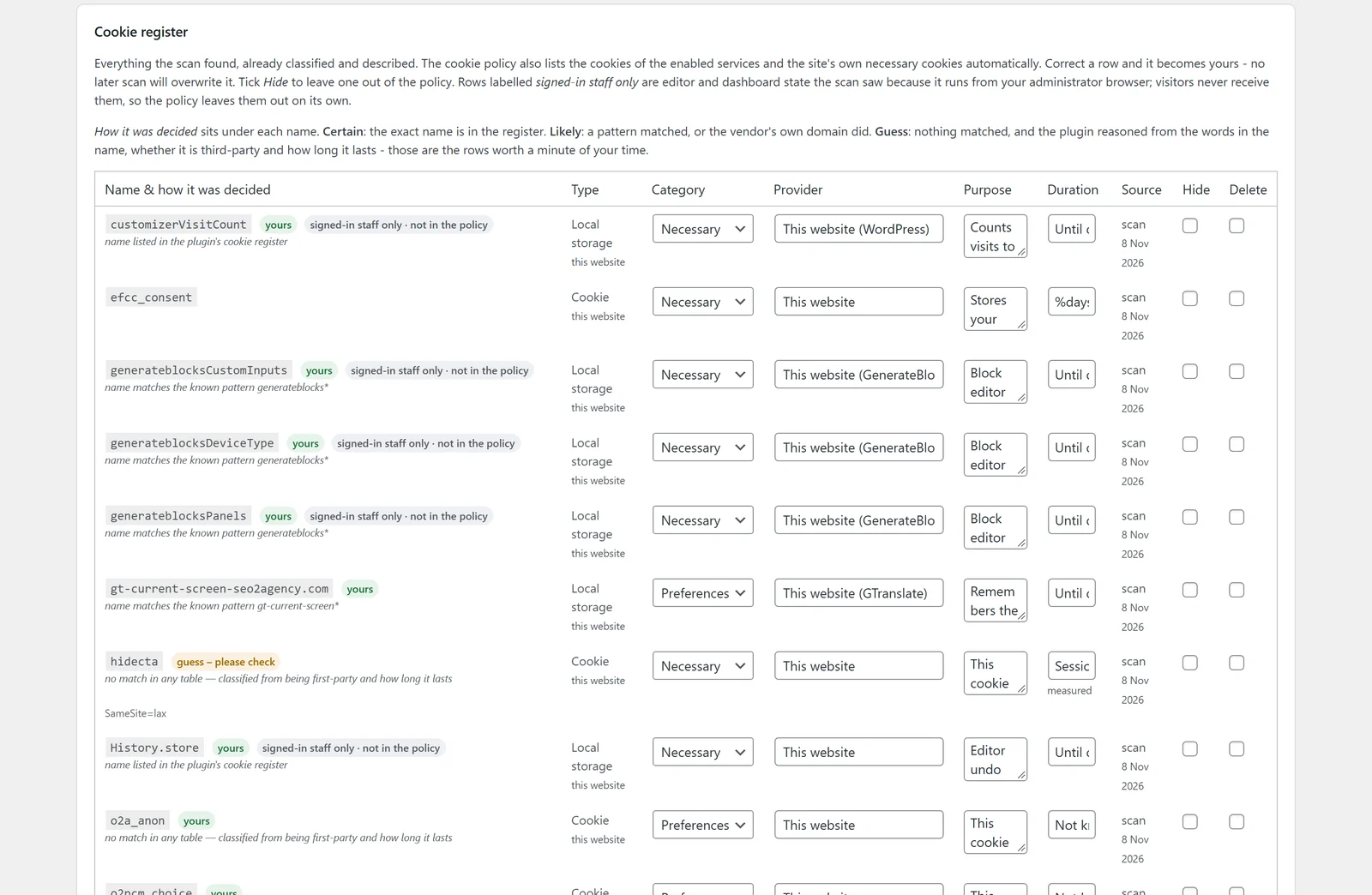
A cookie policy must describe what your site actually does. The scanner fills in the details you would otherwise research by hand, and it is honest about it: every row says how it was decided (certain, likely or guess), so you only need to check the few rows marked as a guess.
It also knows the difference between what visitors receive and what only you see: block-editor, SEO-panel and dashboard state that exists only for signed-in staff stays in your register, clearly labelled, and is kept out of the public cookie policy.
How to set it up
- Go to Cookie Consent → Cookies & scan.
- Add any important pages under Extra pages to scan – for example a page with a video, a map or a form.
- Click Scan the website and wait for it to finish.
- Review the Cookie register. Rows marked guess – please check are the ones worth a minute of your time. Correct a row and it becomes yours; later scans will not overwrite it.
- Tick Hide to leave a row out of the policy, then click Save.
05Services and script blocking
What it is
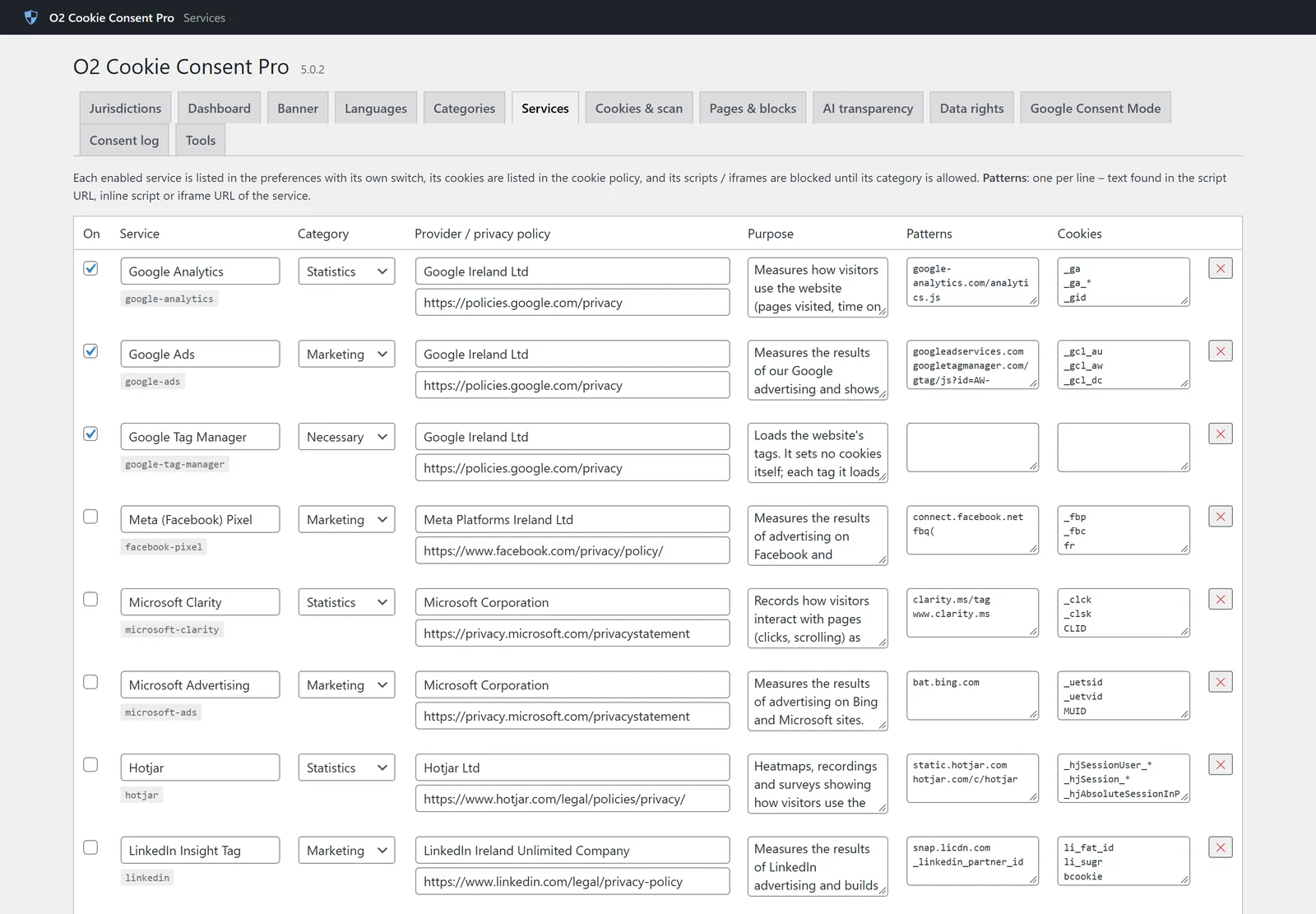
A list of the third-party services your website uses – Google Analytics, Google Ads, Google Tag Manager, Meta Pixel, Microsoft Clarity and Advertising, Hotjar, LinkedIn Insight, TikTok Pixel, Matomo, YouTube, Vimeo, Google Maps, WooCommerce order attribution and your own custom services. Each service is linked to a category and to the scripts, iframes and cookies that belong to it.
How it helps
Scripts are blocked on the server and only released in the browser after the visitor agrees, so nothing optional runs before consent – including YouTube and Google Maps embeds, which get a friendly placeholder until the visitor allows them. Each service also appears automatically in your cookie policy.
How to set it up
- Go to Cookie Consent → Services.
- Tick On for each service your site uses. The scanner also suggests the ones it found.
- Use Add a preset for another known service, or Add a custom service with the URL patterns of its scripts.
- Check that each service has the right Category, then click Save Changes.
06Google Consent Mode v2, Global Privacy Control and IAB GPP
What it is
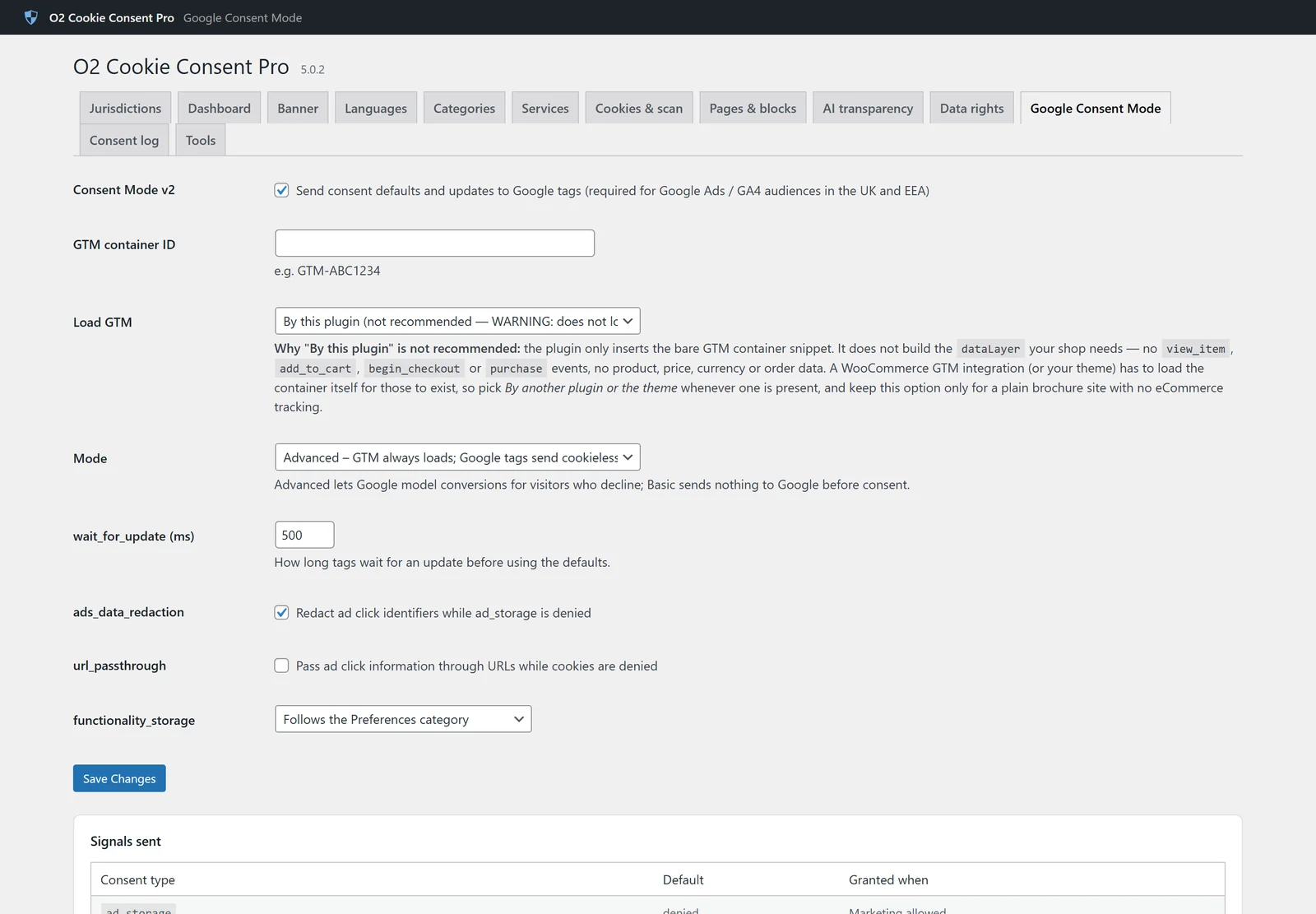
Full support for Google Consent Mode v2: the plugin sends the default state (everything denied where the law requires it) before any Google tag loads, and updates it the moment the visitor chooses – ad_storage, ad_user_data, ad_personalization, analytics_storage, functionality_storage, personalization_storage and security_storage. It can load Google Tag Manager itself and pushes clear dataLayer events. It honours Global Privacy Control, publishes /.well-known/gpc.json and writes the IAB GPP string for US states.
How it helps
Since March 2024 Google requires Consent Mode v2 for advertisers with EEA and UK audiences. Without it, remarketing and conversion measurement stop working. With it, GA4 and Google Ads keep modelling conversions for visitors who decline, so you lose far less data.
How to set it up
- Go to Cookie Consent → Google Consent Mode.
- Keep Consent Mode v2 ticked.
- Enter your GTM container ID (GTM-XXXXXXX) if you want the plugin to load Tag Manager, or choose “By another plugin” if your theme or another plugin already loads it.
- Choose Advanced mode (recommended, keeps conversion modelling) or Basic mode.
- Follow the short Setting up Google Tag Manager guide on the same screen, then click Save Changes.
0738 languages with automatic detection
What it is
The banner, the preferences dialog, the categories and the privacy centre are translated into 38 languages: every official EU/EEA language plus Russian, Ukrainian, Turkish, Arabic, Hebrew, Japanese, Chinese (simplified and traditional), Korean, Hindi, Indonesian, Vietnamese and Thai. Arabic and Hebrew are displayed right-to-left, even on a left-to-right website. The plugin works with WPML, Polylang, TranslatePress and Weglot.
How it helps
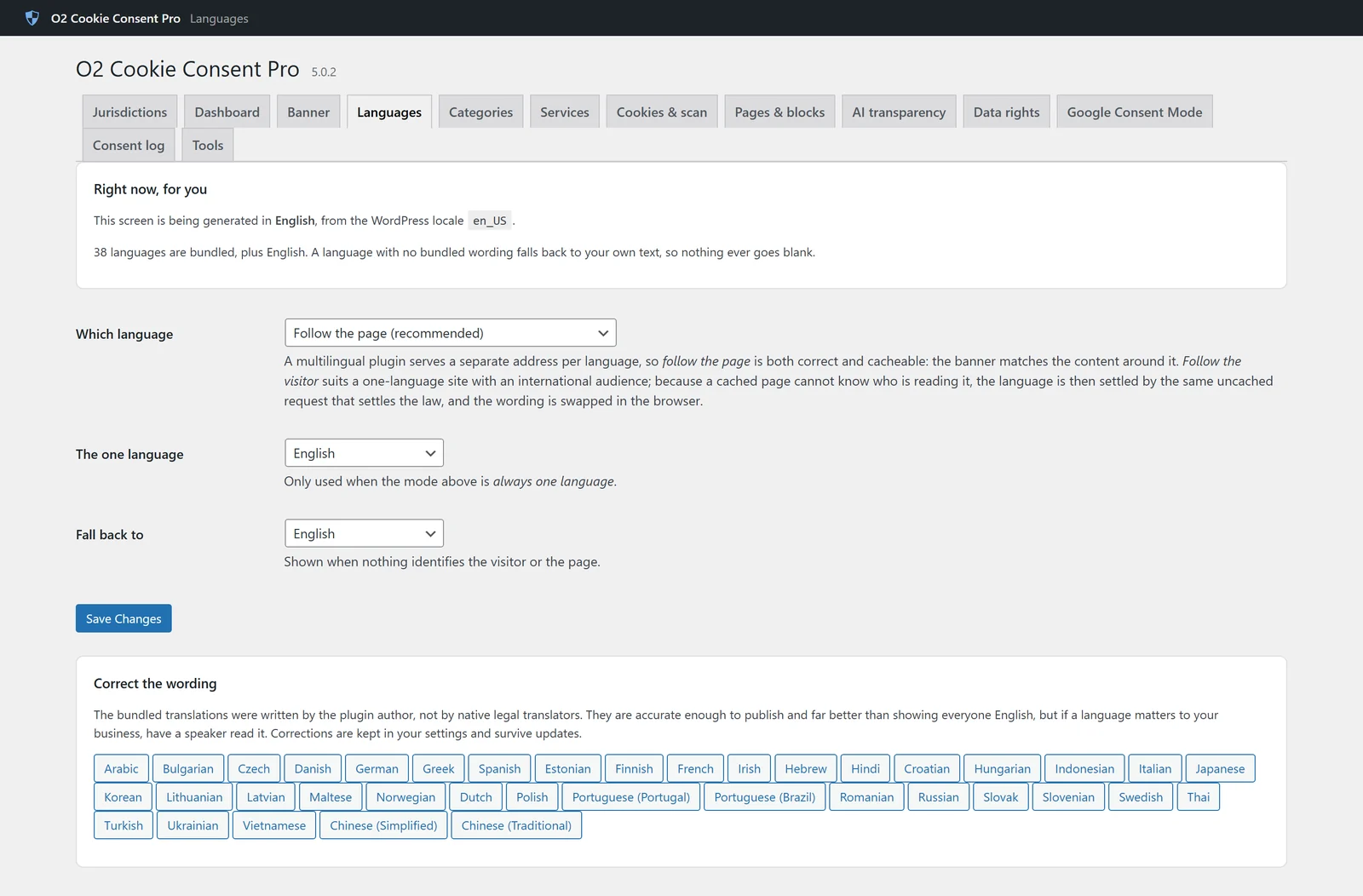
Consent is only valid if it is informed, and a visitor cannot be informed in a language they do not read. You can follow the language of the page, the language of the visitor, or always use one language – and correct any text in any language, with your corrections kept through updates.
How to set it up
- Go to Cookie Consent → Languages.
- Under Which language choose Follow the page (best for multilingual sites), Follow the visitor (best for one-language sites with an international audience) or Always one language.
- Under Correct the wording, click a language to see English, the translation and your correction side by side.
- Click Save Changes.
08Policy pages, Gutenberg blocks and shortcodes
What it is
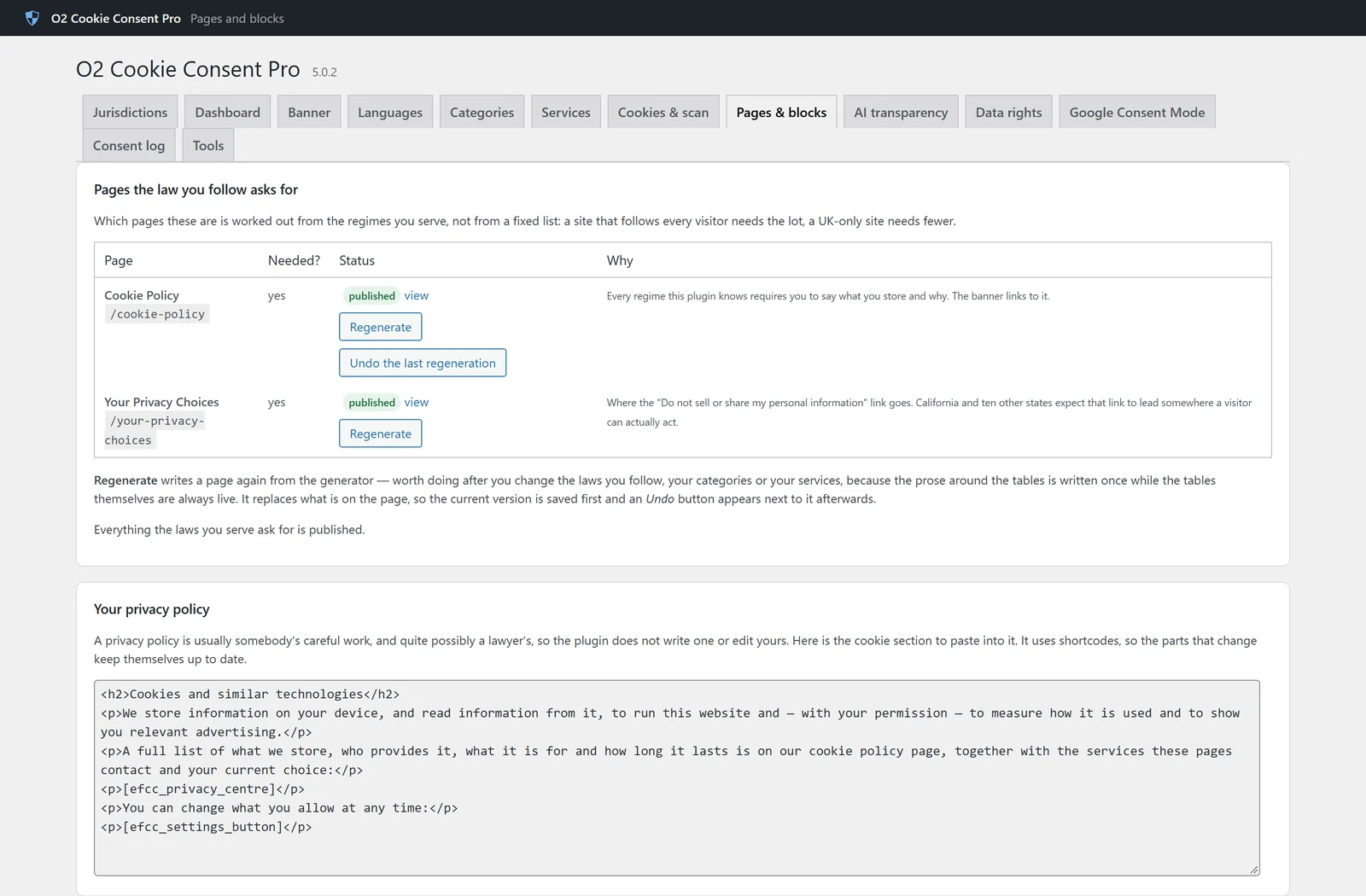
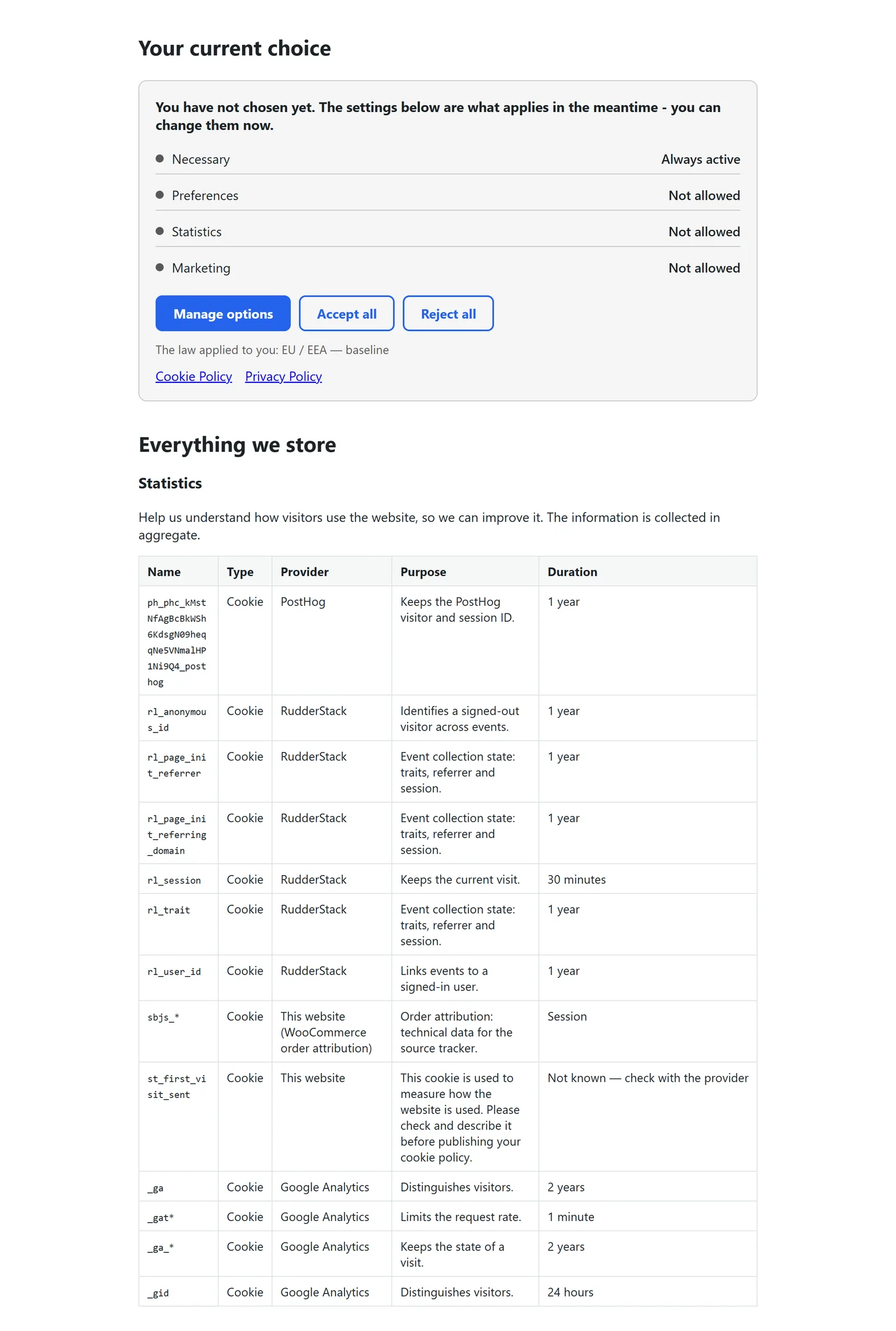
The plugin writes a complete Cookie Policy – about fifteen sections that explain the legal basis for each law you follow, your categories, your services and the visitor’s rights – and a Your Privacy Choices page for US visitors. The cookie tables inside are live: they are rendered from the register every time the page is viewed, and whenever a scan or the automatic check changes the register, the plugin empties your page cache – so the policy visitors see is always the current one, even behind LiteSpeed or WP Rocket. Everything is also available as a Gutenberg block and a shortcode.
How it helps
You get a policy that matches what your site really does, without copying tables by hand. Pages you wrote yourself are never overwritten: the plugin only adds its content when you ask, Regenerate saves the previous version first, and Undo brings it back. Policy pages link to your contact page instead of publishing your email address.
How to set it up
- Go to Cookie Consent → Pages & blocks.
- Click Create the missing pages to publish the pages the laws you follow ask for (or Add the policy to this page if a page already exists).
- Copy the ready-made Cookies and similar technologies section into your privacy policy.
- Add blocks or shortcodes anywhere: in the block editor search for Cookie consent, or paste a shortcode such as
[efcc_cookie_table]. - After you change the laws you follow, your categories or services, click Regenerate.
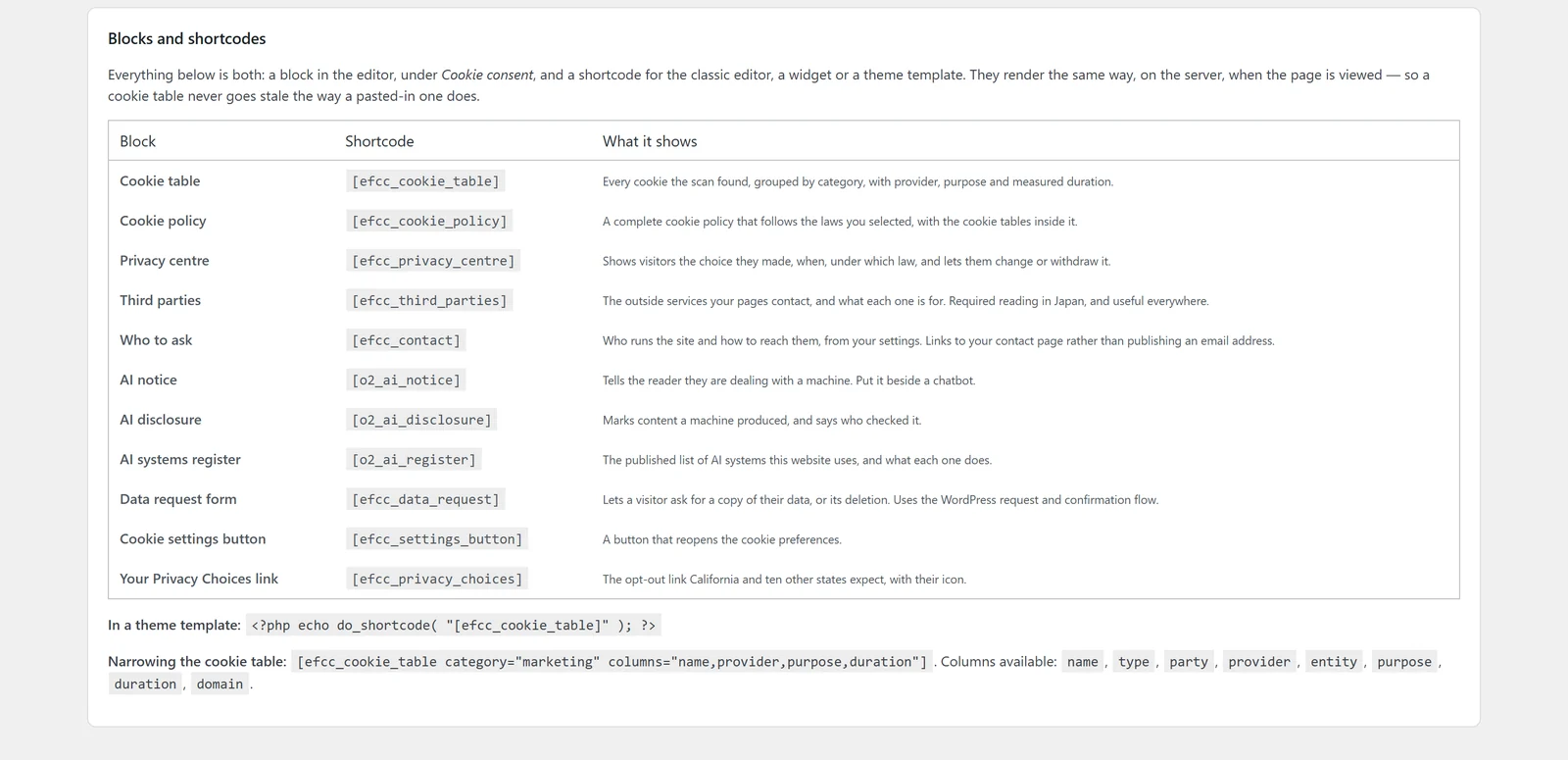
| Shortcode | What it shows |
|---|---|
[efcc_cookie_table] | Every cookie found, grouped by category, with provider, purpose and measured duration. Filter with category="marketing" and columns="name,provider,purpose,duration". |
[efcc_cookie_policy] | A complete cookie policy for the laws you follow, with the live tables inside. |
[efcc_privacy_centre] | The visitor’s current choice, when it was made and under which law, with buttons to change or withdraw it. |
[efcc_third_parties] | The outside services your pages contact and what each one is for. |
[efcc_settings_button] | A button that reopens the cookie preferences. |
[efcc_privacy_choices] | The “Your Privacy Choices” opt-out link with its official icon. |
[efcc_data_request] | A form for data access and erasure requests. |
[efcc_contact] | Who runs the website and how to reach them, linking to your contact page. |
[o2_ai_notice] [o2_ai_disclosure] [o2_ai_register] | AI transparency notices and the register of AI systems. |
09Tamper-evident consent log and receipts
What it is
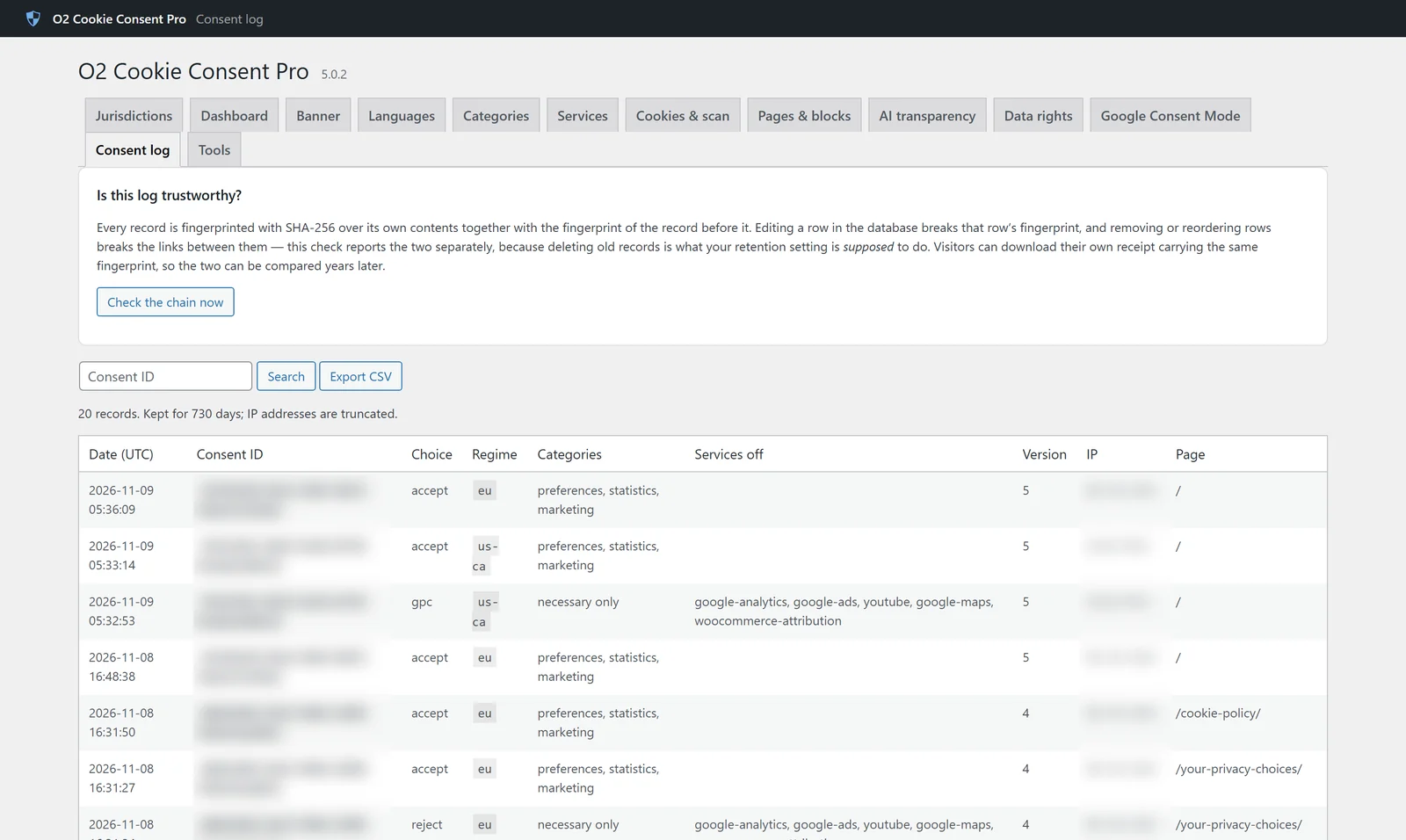
Every choice is recorded with a random consent ID, the date, the choice, the law that applied, the categories and services, the banner version and a truncated IP address. Each record is fingerprinted with SHA-256 chained to the record before it, so editing or removing a row is detectable. Visitors can download a receipt carrying the same fingerprint.
How it helps
Under the GDPR you must be able to demonstrate consent. A log that anyone with database access could quietly edit proves very little; a chained log does. You can search by consent ID, export to CSV and set how long records are kept.
How to set it up
- The log is on by default. Go to Cookie Consent → Consent log to see the records.
- Click Check the chain now to verify that no record was altered.
- Search a Consent ID when a visitor asks about their choice, or click Export CSV for an audit.
10Scheduled monitoring and the pre-consent leak check
What it is
Two safety nets. Keep watching is on by default: once a week (or daily, or monthly – your choice) the plugin re-checks your pages, adds any new cookie or third-party service to the register, so your cookie policy updates itself, and emails you only when something new appears – typically after a plugin update or a new marketing tag. The Dashboard reminds you to run a full browser scan again after 90 days, because only that one sees what JavaScript stores. The leak check asks for your pages exactly as a visitor who agreed to nothing and reports anything that still loaded.
How it helps
The question regulators ask is not whether a banner appears, but whether refusing actually stops the tracking. The leak check answers that in one click, and monitoring keeps your cookie policy accurate between scans without you lifting a finger.
How to set it up
- Go to Cookie Consent → Cookies & scan.
- Keep watching is already on, once a week. To change it, choose daily, weekly or monthly – or off – and keep Email when the check finds something ticked.
- Click Run the leak check now under Does refusing actually stop anything?
- Save. Fix anything reported by assigning it to a service, then run the check again.
11AI transparency (EU AI Act) and AI training opt-out
What it is
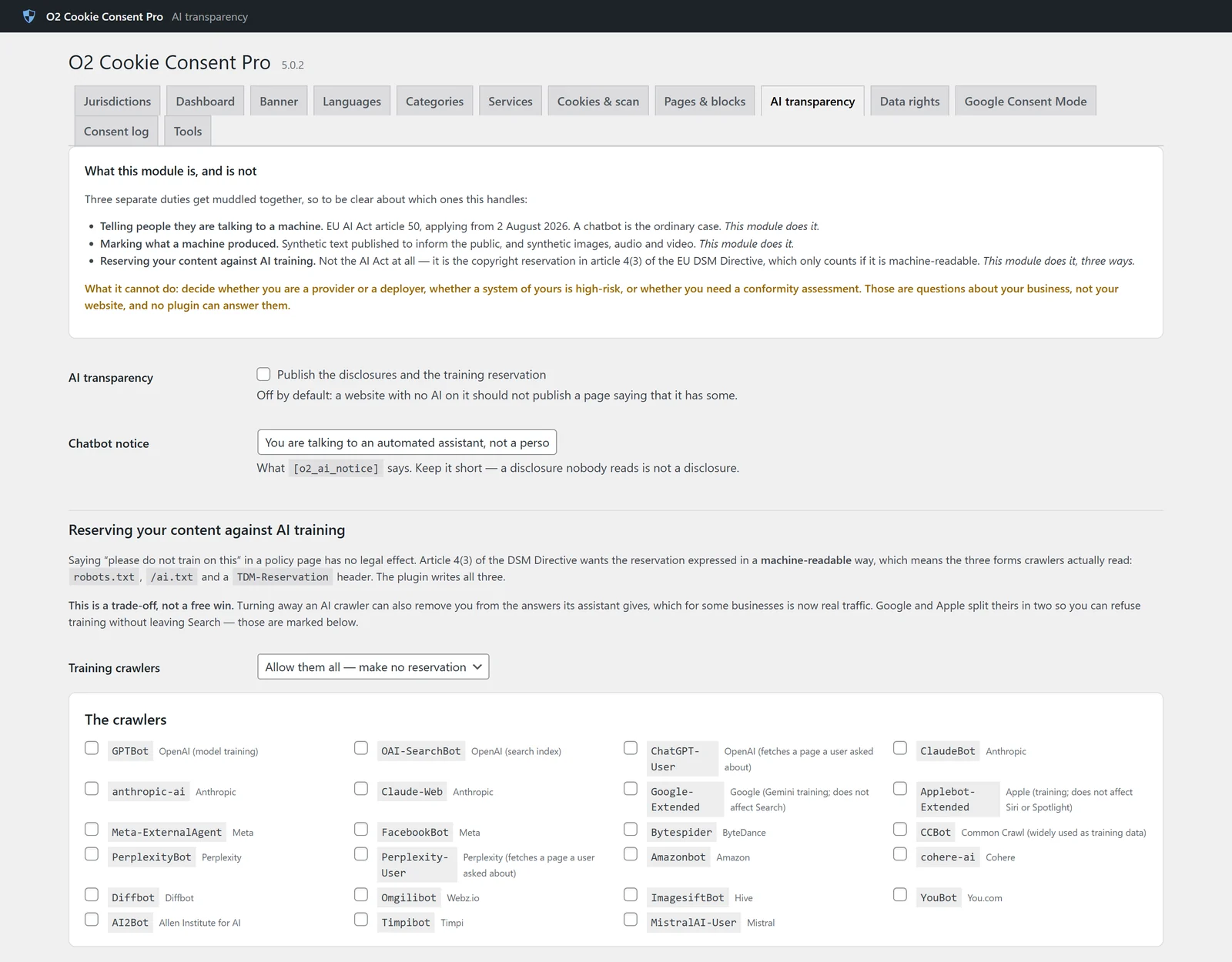
A module for the new AI duties. It publishes the notices required by article 50 of the EU AI Act (applying from 2 August 2026) – telling people they are talking to a chatbot and marking AI-generated content – and keeps a register of the AI systems your website uses. It can also reserve your content against AI training in the machine-readable way the EU copyright directive requires: in robots.txt, in /ai.txt and with a TDM-Reservation header, for GPTBot, ClaudeBot, Google-Extended, CCBot, PerplexityBot and 20+ other crawlers.
How it helps
You can show visitors and regulators exactly where AI is used and who checks its output, and decide which AI crawlers may use your content – while keeping search engines and AI assistants that send you traffic, if you want them. The module is off by default, because a website without AI should not publish a page saying it has some.
How to set it up
- Go to Cookie Consent → AI transparency and tick Publish the disclosures and the training reservation.
- Edit the short Chatbot notice and place
[o2_ai_notice]next to your chatbot. - Under Training crawlers choose to allow all, block all or block selected crawlers, and tick the ones to refuse.
- Add each AI tool you use to The AI systems this website uses – what it does, the provider and who oversees it – and click Save the register.
- Publish the register with
[o2_ai_register]on your privacy or AI page.
12Data rights: access and erasure requests
What it is
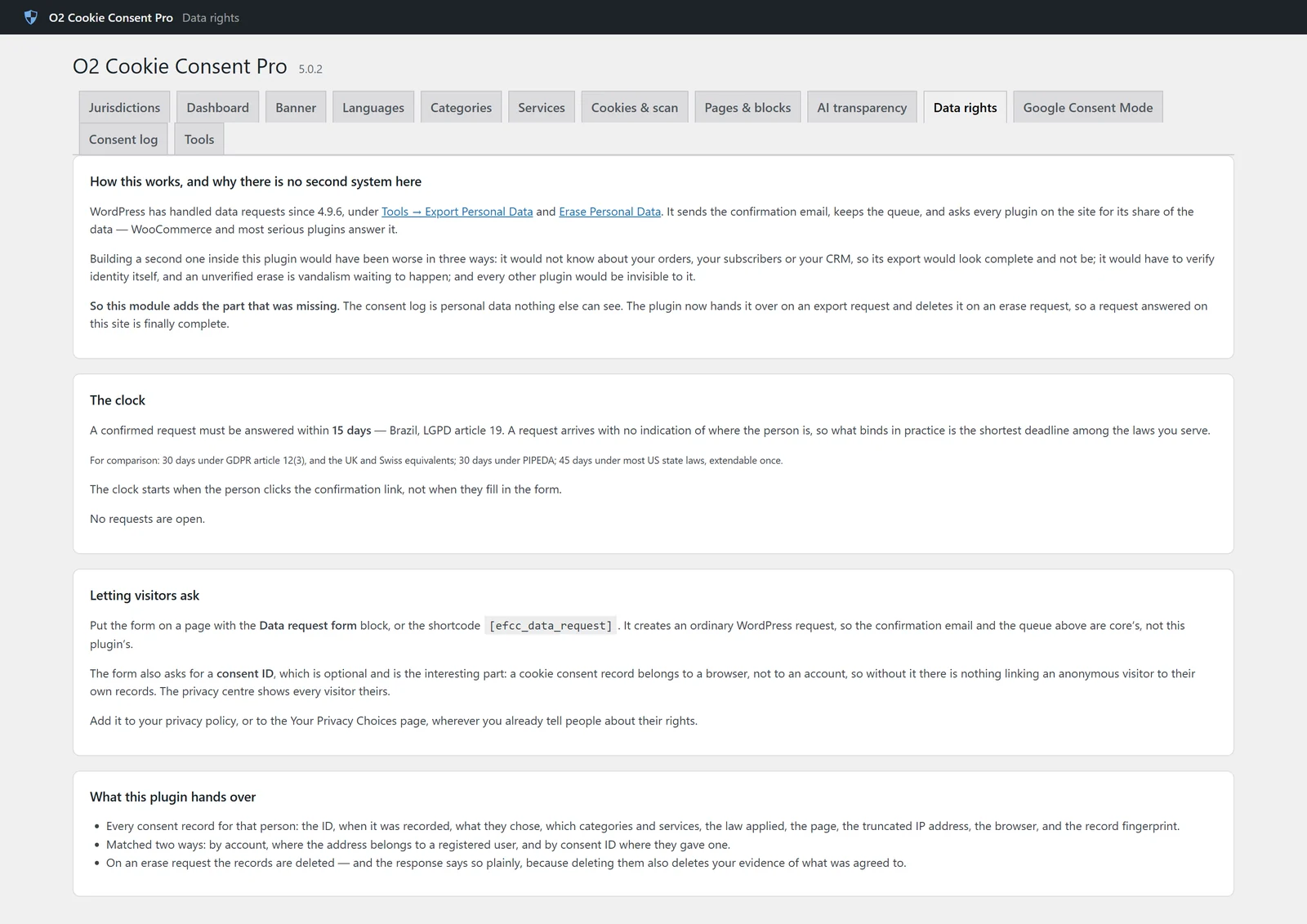
A form that lets visitors ask for a copy of their data or its deletion, built on WordPress’s own Export Personal Data and Erase Personal Data tools. The plugin adds the consent log to both, and starts a clock with the shortest deadline among the laws you follow – 30 days under the GDPR, 45 days under most US state laws, 15 days under Brazil’s LGPD.
How it helps
Instead of a second, separate system, requests go through the confirmation email and queue WordPress already has, so WooCommerce and other plugins answer them too. Nothing is forgotten and every deadline is visible.
How to set it up
- Create a page (for example “Your data”) and add the Data request form block or
[efcc_data_request]. - Link to it from your privacy policy and your Your Privacy Choices page.
- Handle requests in Tools → Export Personal Data and Tools → Erase Personal Data in WordPress.
13Dashboard, tools and a Save button you cannot miss
What it is
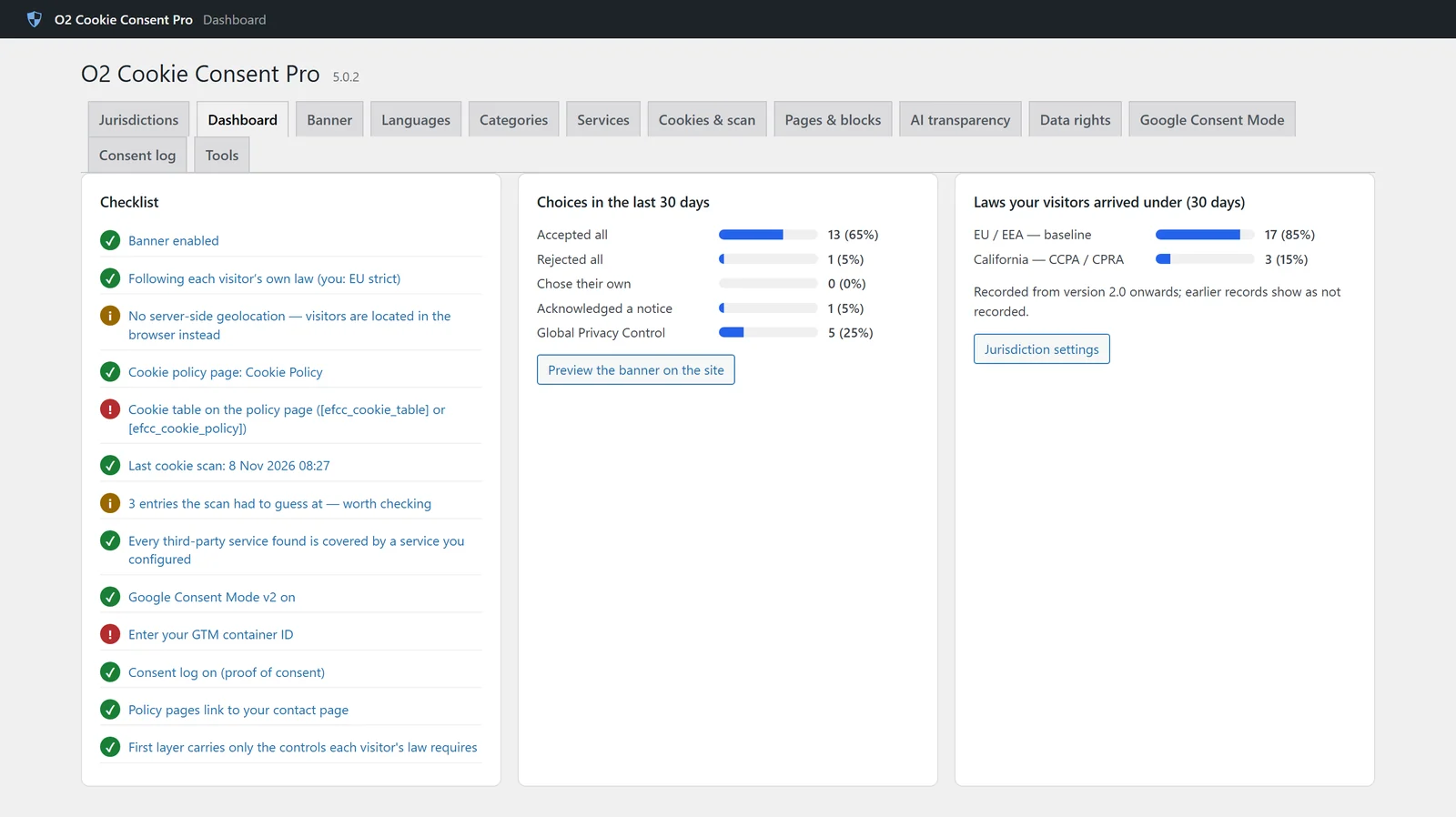
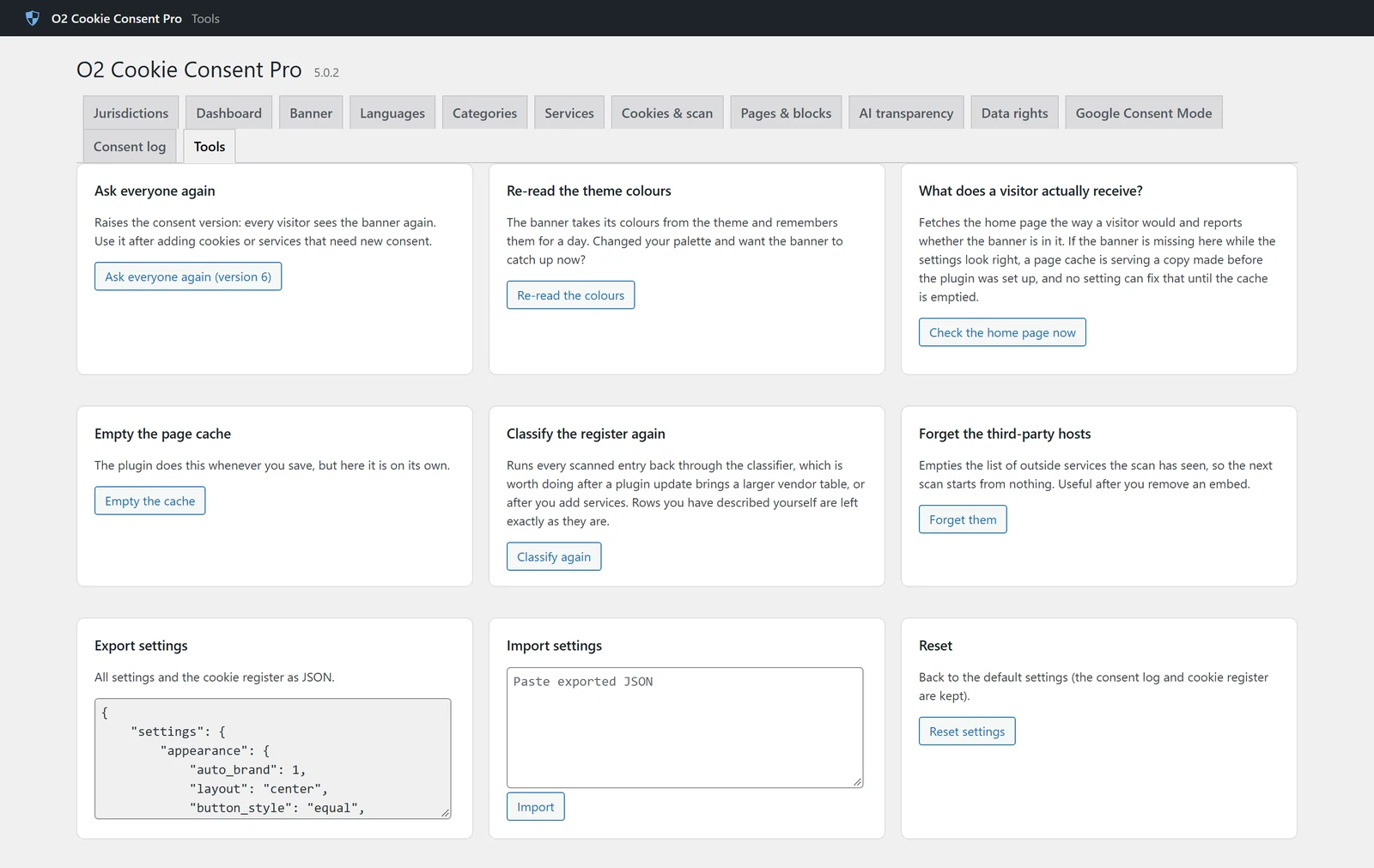
The Dashboard shows a compliance checklist, the choices made in the last 30 days (accepted, rejected, customised, Global Privacy Control) and the laws your visitors arrived under. Tools holds the actions you need occasionally: ask everyone again, empty the page cache, re-read the theme colours, check what a visitor actually receives, export and import settings, and reset. In every tab a floating Save button appears as soon as you change something, so you never leave without saving.
How it helps
You see at a glance what is done and what is missing, and you can fix a cache problem or roll a new banner version out to everyone without touching the database.
How to use it
- Open Cookie Consent → Dashboard and work through any item marked in red or orange.
- After adding new cookies or services, use Tools → Ask everyone again so returning visitors see the banner once more.
- Use What does a visitor actually receive? after any change to your cache or CDN.
- Before moving a site, use Export settings and import them on the new site.
Frequently asked questions
Is O2 Cookie Consent Pro really free?
Yes. The plugin is free to download and use on your websites, under the GPL licence. There is no subscription, no page-view limit and no account to create.
Does it make my website GDPR compliant?
It covers the cookie and consent part of the GDPR and the ePrivacy rules: prior consent, granular choices, equal prominence of reject and accept, easy withdrawal, proof of consent and an accurate cookie policy. GDPR compliance as a whole also depends on how your business handles personal data, which no plugin can decide for you.
Can it detect where each visitor is from?
Yes. It reads the country from your CDN header (for example Cloudflare), your server’s GeoIP module or a MaxMind-format database you add, and falls back to the browser’s time zone and language. It never sends a visitor’s IP address to a third-party service. If the location cannot be determined, the strictest profile is used.
Which laws does it support?
There are 32 legal profiles: the EU/EEA baseline and national readings for France, Germany, Italy, Spain, Denmark, the Netherlands, Austria and Ireland; the UK (PECR as amended by the Data (Use and Access) Act 2025); Switzerland; California and the other US state privacy laws; Canada and Quebec; Brazil (LGPD); Japan; South Korea; Australia; Turkey; India and more, covering 250 countries and territories.
Does it work with Google Consent Mode v2 and Google Tag Manager?
Yes. It sets the default consent state before Google tags load and updates all seven consent types when the visitor chooses. It can load your GTM container itself or work with a container loaded by your theme or another plugin, in advanced or basic mode.
Is it a Google-certified CMP with IAB TCF?
No. A Google-certified CMP using IAB TCF is only required for AdSense, Ad Manager and AdMob publishers serving ads in the EEA, the UK and Switzerland. Advertisers using GA4, Google Ads or Meta need Consent Mode v2, which this plugin provides. If you run AdSense on an EEA audience, you will need a certified CMP for that part.
Will it slow down my website or break my page cache?
No. The banner script is small, loads deferred and needs no jQuery. The HTML is the same for every visitor, so page caches keep working, and the plugin empties LiteSpeed, WP Rocket, W3 Total Cache, WP Super Cache, SiteGround, Cache Enabler, Autoptimize, Nginx Helper, Hummingbird, Breeze, WP Engine and Kinsta caches automatically when you save.
Does it block cookies before consent?
Yes. Scripts and embeds of optional services are blocked on the server and only released in the browser after consent. The leak check lets you verify it on your own pages.
Can I customise the banner texts and colours?
Yes. Colours are taken from your theme by default and can be changed. Every text can be edited, for all regimes or for one regime, and in every language.
Does it work with multilingual plugins?
Yes. It works with WPML, Polylang, TranslatePress and Weglot, and its texts are registered as translatable strings in WPML and Polylang.
Does the cookie policy update itself when cookies change?
Yes. The cookie tables are rendered live from the register, and the automatic weekly check adds new cookies and third-party services to it. Every time the tables change, the plugin empties your page cache, so visitors always see the current policy. A full browser scan every few months catches what only JavaScript sets; the Dashboard reminds you.
Will it overwrite my existing cookie or privacy policy?
No. It never changes a page you wrote without being asked. It adds its content at the end when you click the button, saves the previous version before regenerating, and offers Undo. It does not rewrite your privacy policy; it gives you a section to paste into it.
What are the requirements?
WordPress 6.5 or newer and PHP 8.1 or newer. It has been tested with WordPress 6.9.
Make your cookie banner lawful in every country
Download O2 Cookie Consent Pro, activate it and run one scan. In a few minutes every visitor sees the banner their own law asks for – in their language, in your brand colours, with proof of every choice.
Download O2 Cookie Consent Pro 5.0.7Free WordPress plugin by O2 Digital · WordPress 6.5+ · PHP 8.1+ · Need help setting it up? Contact us